 ThunderSnippet
Canned replies for Thunderbird, one Tab away
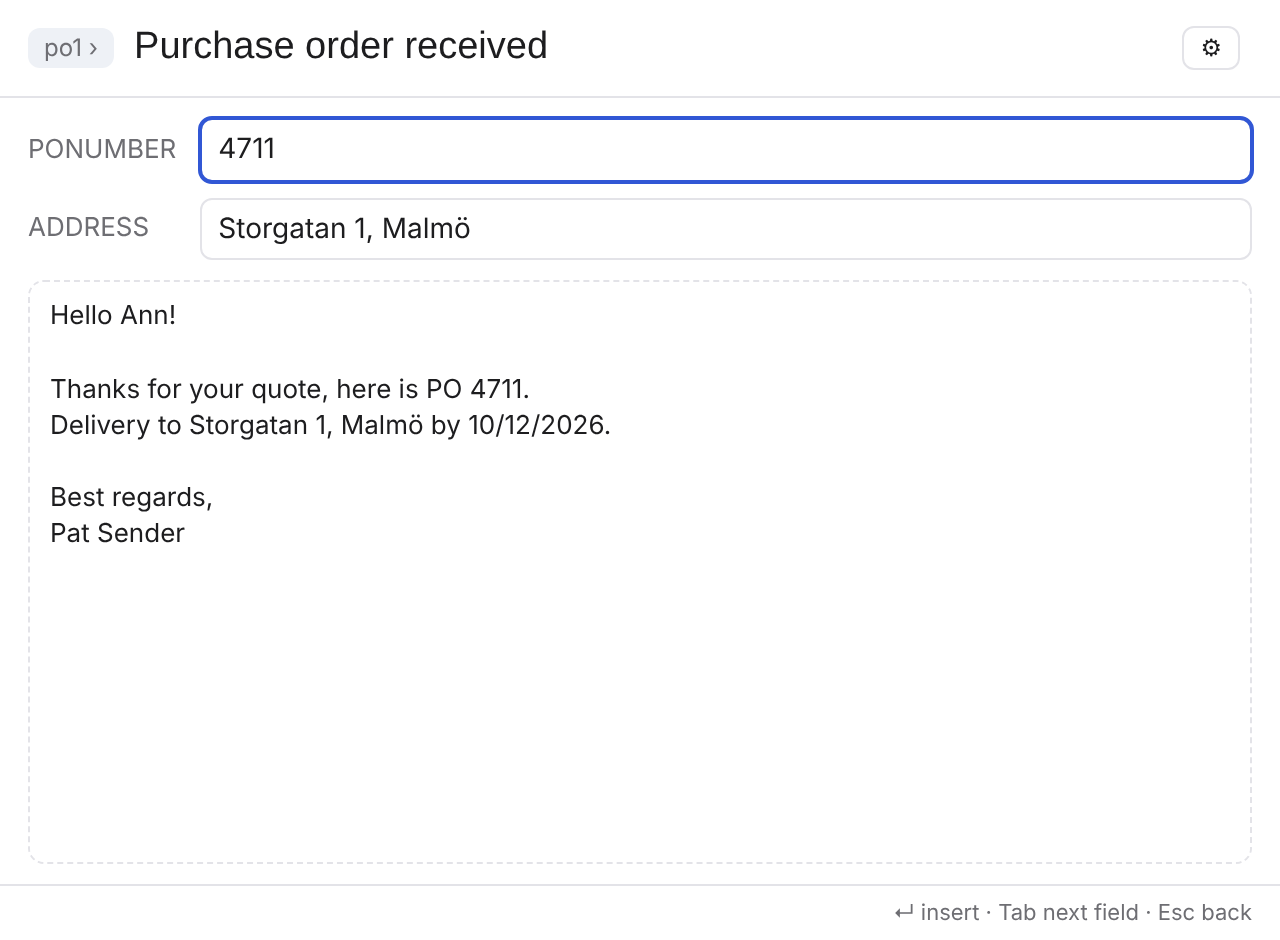
Type po1, press Tab, enter the PO number. ThunderSnippet writes the reply with the recipient's first name, your name and today's date, and attaches the files that belong with it.
Free and open source (MIT) · Thunderbird 91 to the latest release · No data collection
Write the same email once
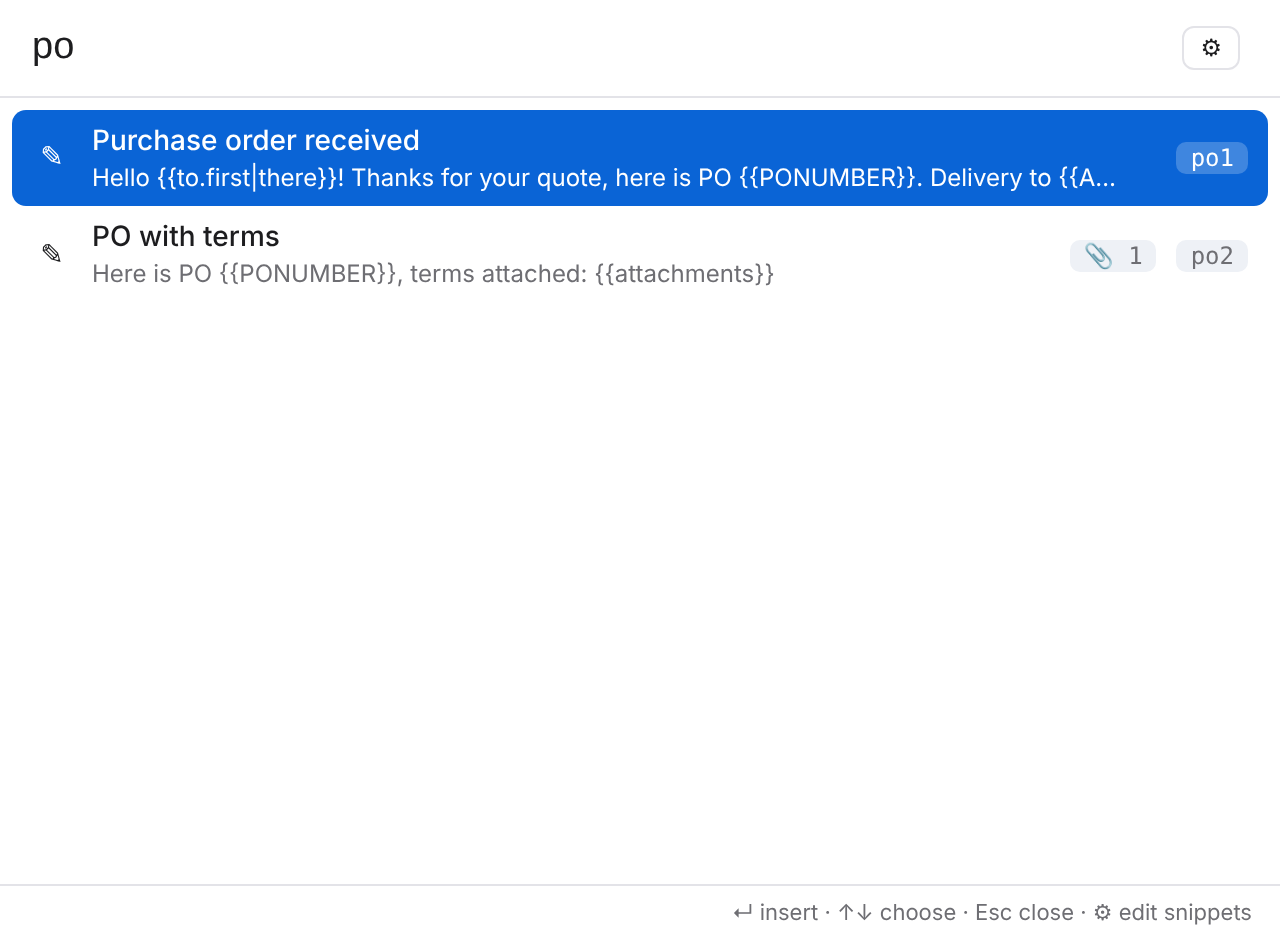
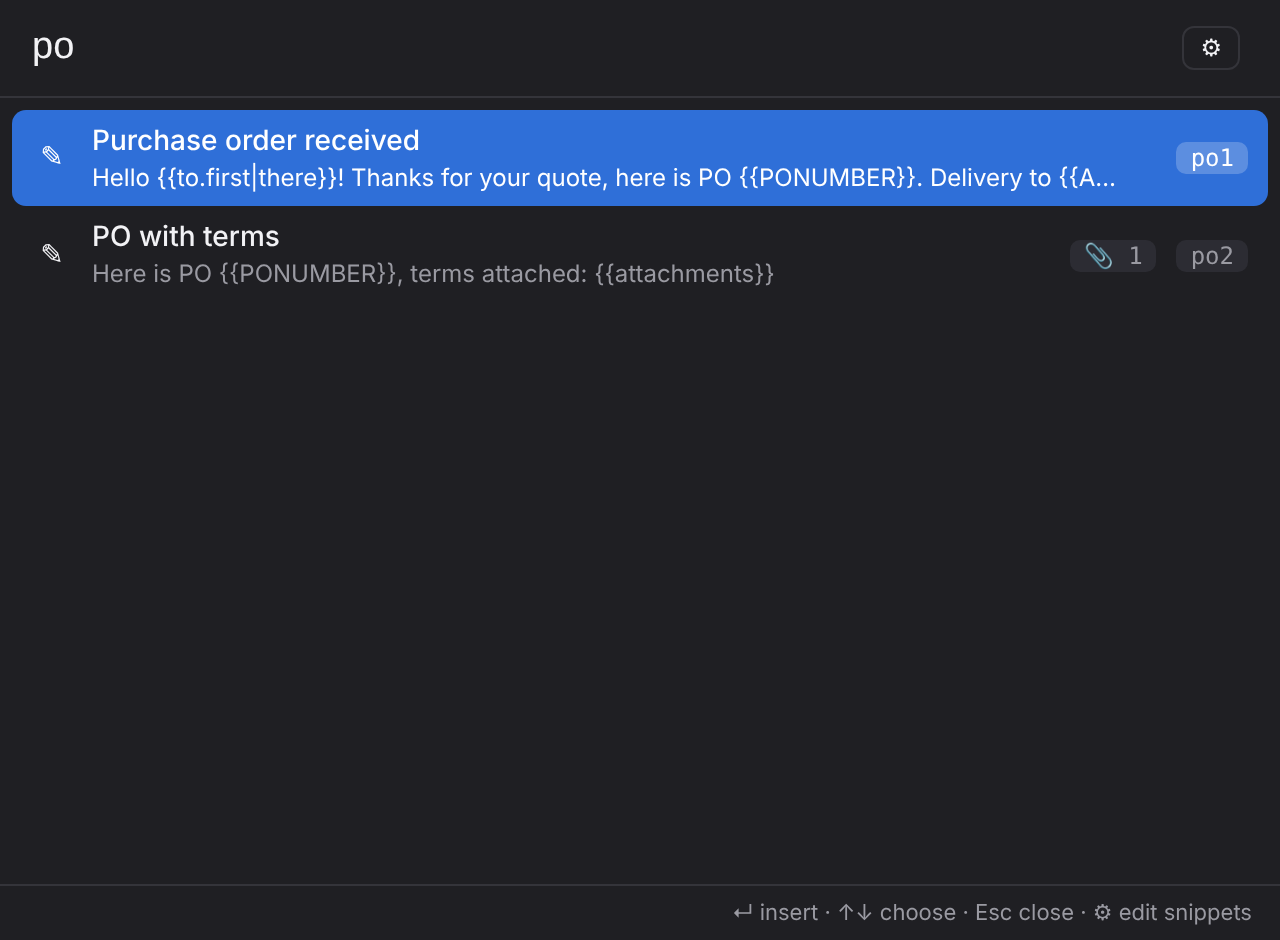
Order confirmations, quotes, follow-ups, support answers: type a short key in the message and press Tab, or search all your snippets with Alt+Shift+S.
Key + Tab
Type ty and press Tab: the key becomes the whole text, right where you are typing. Space works too, if you prefer.
Fields
{{PONUMBER}} opens a small form with a live preview. Defaults, choices, and last time's values filled in.
Knows who you write to
{{to.first}}, {{me.name}}, {{subject}}, dates in any format, and where the caret ends up.
Attachments
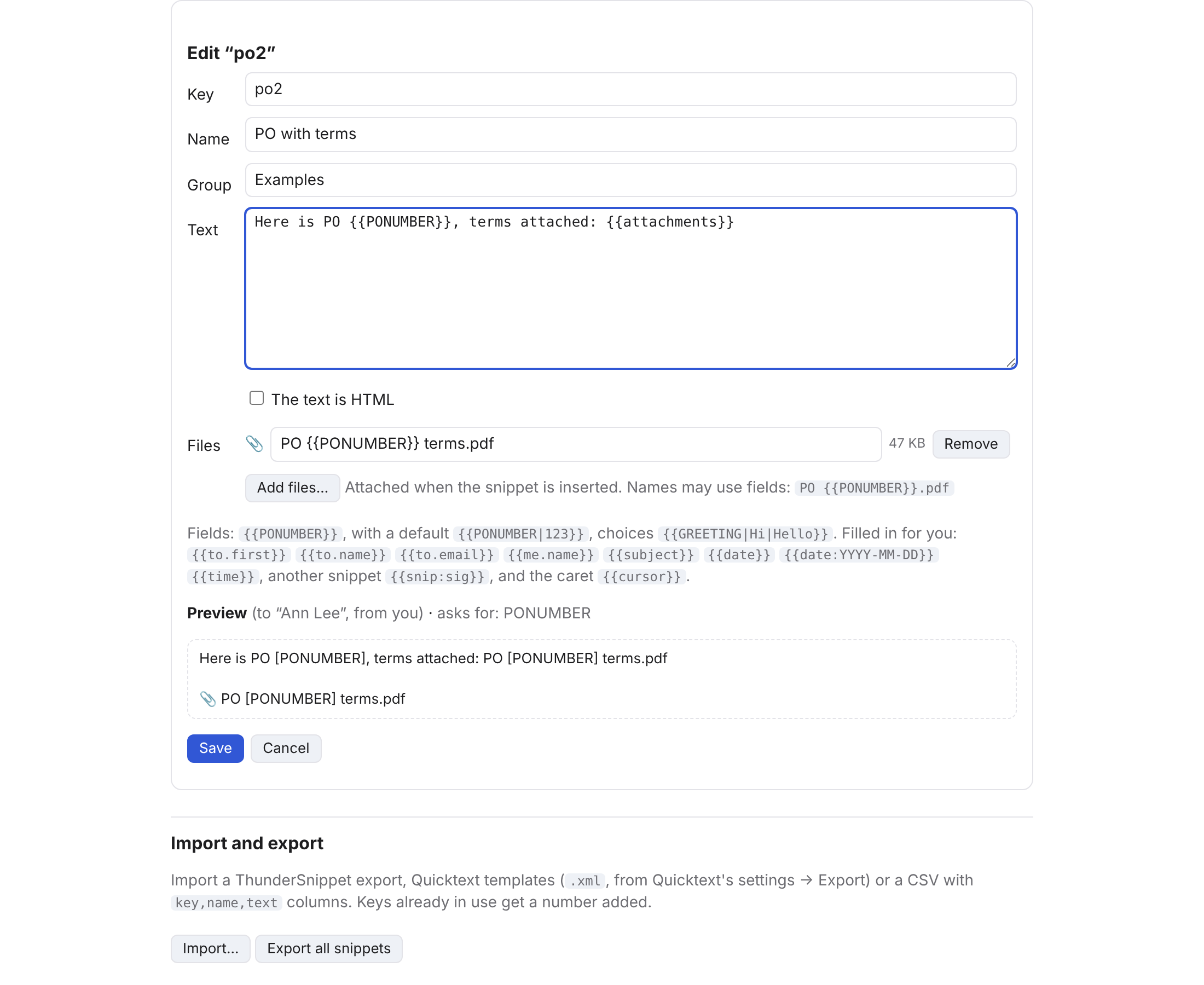
Snippets can bring their files, named from the fields: PO {{PONUMBER}} terms.pdf becomes PO 4711 terms.pdf.
Subject and recipients
A snippet can put [PO {{PONUMBER}}] before the subject, add your manager on Cc, replace To, set Reply-To or an X- header.
Snippets in snippets
{{snip:sig}} puts your signature snippet in; its fields are asked in the same form.
Bring your Quicktext
Import Quicktext templates (their codes are translated), CSV, or a ThunderSnippet export.
See it
Everything a snippet can contain
{{PONUMBER}} | A field you fill in ({{PONUMBER|12345}} with a default, {{GREETING|Hi|Hello}} as a choice) |
{{to.first}} {{to.name}} {{to.email}} | The first recipient ({{to.first|there}} when the name is unknown) |
{{me.name}} {{me.email}} | You |
{{subject}} | The subject |
{{date}} {{date:YYYY-MM-DD}} {{time}} | Today, in your format or any pattern |
{{attachments}} | The names of the message's attachments, kept up to date when you add or remove files later |
{{snip:sig}} | Another snippet |
{{cursor}} | Where the caret goes after inserting |
Tested on every Thunderbird
Each change is tested inside real Thunderbird builds: compose windows are opened, keys are typed, forms filled in and the message text checked. Once a week, on every major version since 91.


See the latest runs on GitHub Actions.
Versions
Install
- Download the
.xpifor your Thunderbird from the latest release (one for 140 and newer, one for 91–139). - In Thunderbird: Add-ons and Themes → ⚙ → Install Add-on From File… Updates install automatically after that.
- Write a message, type
po1and press Tab. Example snippets are already there to try and change.
The Thunder suite
Same look, made to work together: ThunderJump (jump to any folder from the keyboard) and ThunderExportImport (export to PDF, HTML, EML, MBOX with a compliance stamp, which also backs up every suite add-on's settings in one file).